 Domovoy
How to install Domovoy
You'll need your child's computer with Windows 10 or 11, your administrator account and a phone on your home Wi‑Fi. Nothing else needs to be installed.
-
Give your child a standard account
- Settings, Accounts, Other users (Windows 10: Family & other users).
- Set your child's account type to “Standard User”.
- Keep an administrator account for yourself, with a password your child doesn't know.
- Answer the Windows security questions with nonsense words that only you know: these answers can reset the password.
With administrator rights, a child can turn off any protection, not just Domovoy.
-
Download and run the installer
The download opens once the program is signed with a code-signing certificate. Write to support@getdomovoy.com and we'll let you know.
Windows 10 and 11 only. A Mac version is planned for later.
On your child's computer, sign in to your administrator account, extract the archive and run Install.cmd. Windows asks for permission: click “Yes”. At the end, the setup window shows a QR code and an 8-character code.
While the program is new, Windows or an antivirus may warn about it. Download Domovoy only from this site, and check the SHA-256 code next to the download button. The FAQ explains how.
-
Set up Domovoy from your phone
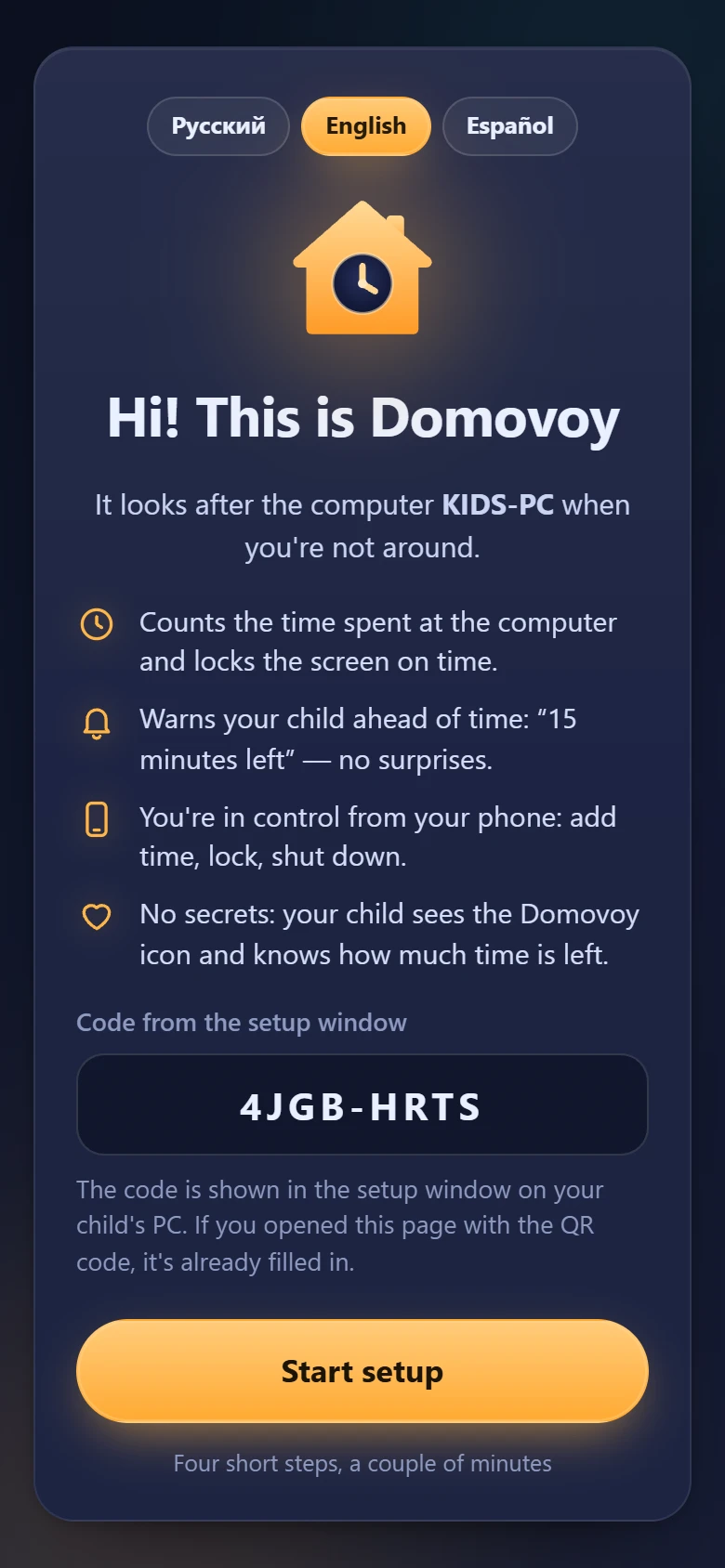
Point your phone's camera at the QR code: the setup wizard opens on the phone with the code already filled in. Enter your child's name, check the adult accounts and set the parent password: at least 10 characters and not the same as a Windows password.
This way the parent password isn't typed on your child's computer, so it is much harder to see or find there.
-
Keep the panel on your phone
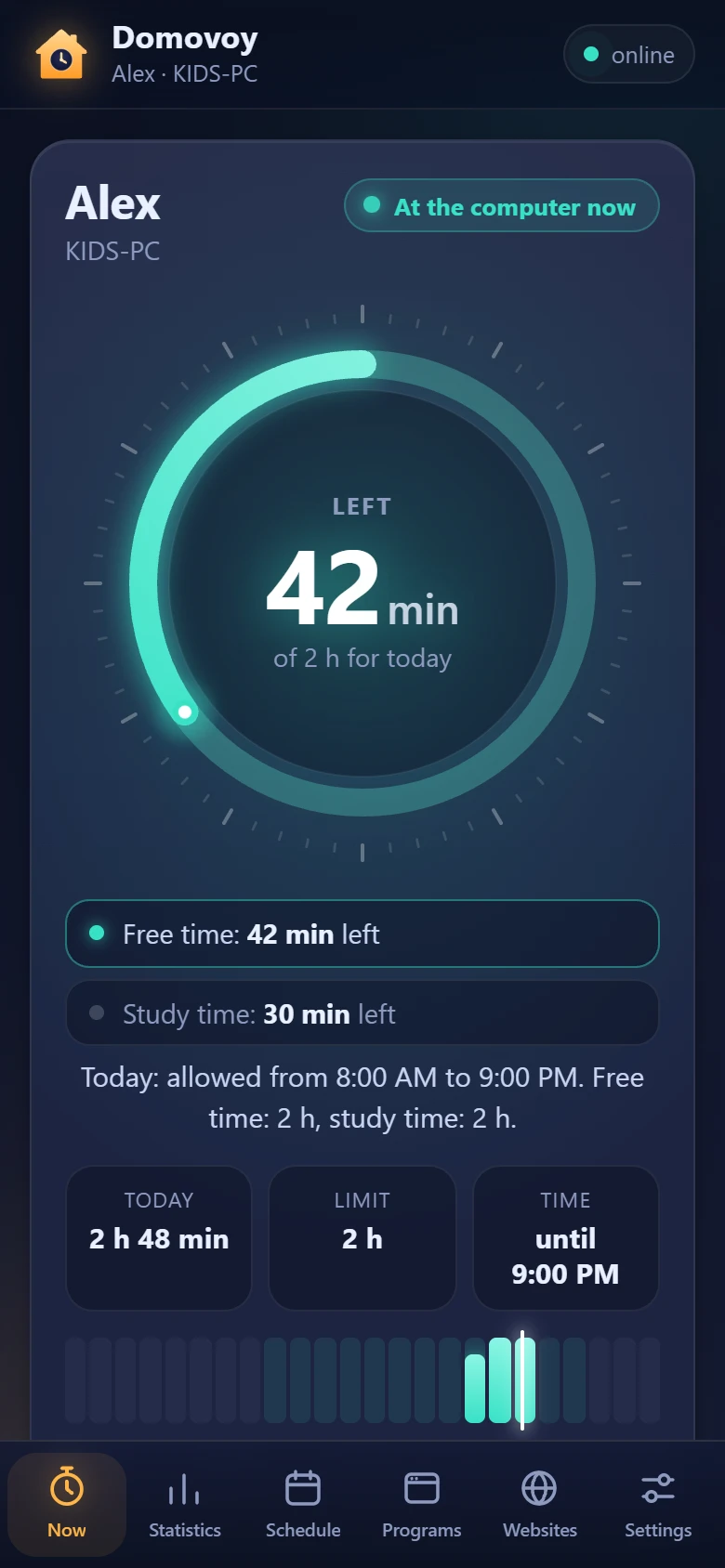
At the end, the wizard shows the panel's address. Add it to your phone's home screen. Type the parent password only on your own phone or your own computer.
Delete the installation folder from your child's computer: the program has already been copied where it belongs.
-
Check the “Security” section
In the panel: Settings, “Security”. Domovoy checks the computer by itself: whether your child has administrator rights, whether the administrators have passwords, whether the Windows password can be reset with security questions, whether the drive is encrypted. Each line tells you what to do. Start with the red ones.
-
If you want to manage it from outside your home and get notifications
In the panel: Settings, “Access from anywhere”. Turn it on and pair each phone with the QR code while you're at home. Don't photograph or forward the QR code: it can pair another phone too. Then open Domovoy from its icon on your phone and turn on “Notifications on this phone”. On iPhone, notifications work only in Domovoy opened from its Home Screen icon.